dMix 128 Networking & Recovery Guide
Contents
- Before you start
- 1. Direct cable connection for control (self-assigned IP)
- 2. Connecting via a router for IP
- 3. Connecting for audio (driver install)
- 4. How addressing works on the dMix
- 5. Finding the dMix on macOS (Terminal)
- 6. Finding the dMix on Windows
- 7. Setting network priority on macOS
- 8. Setting network priority on Windows
- 9. Command cheat-sheet & troubleshooting
- 10. Creating Dante / AES67 streams and connecting the dMix 128
- 11. Quick reference & troubleshooting
- 1. What Recovery Mode Is For
- 2. Before You Start
- 3. Enter Recovery Mode
- 4. Recovery Home Screen
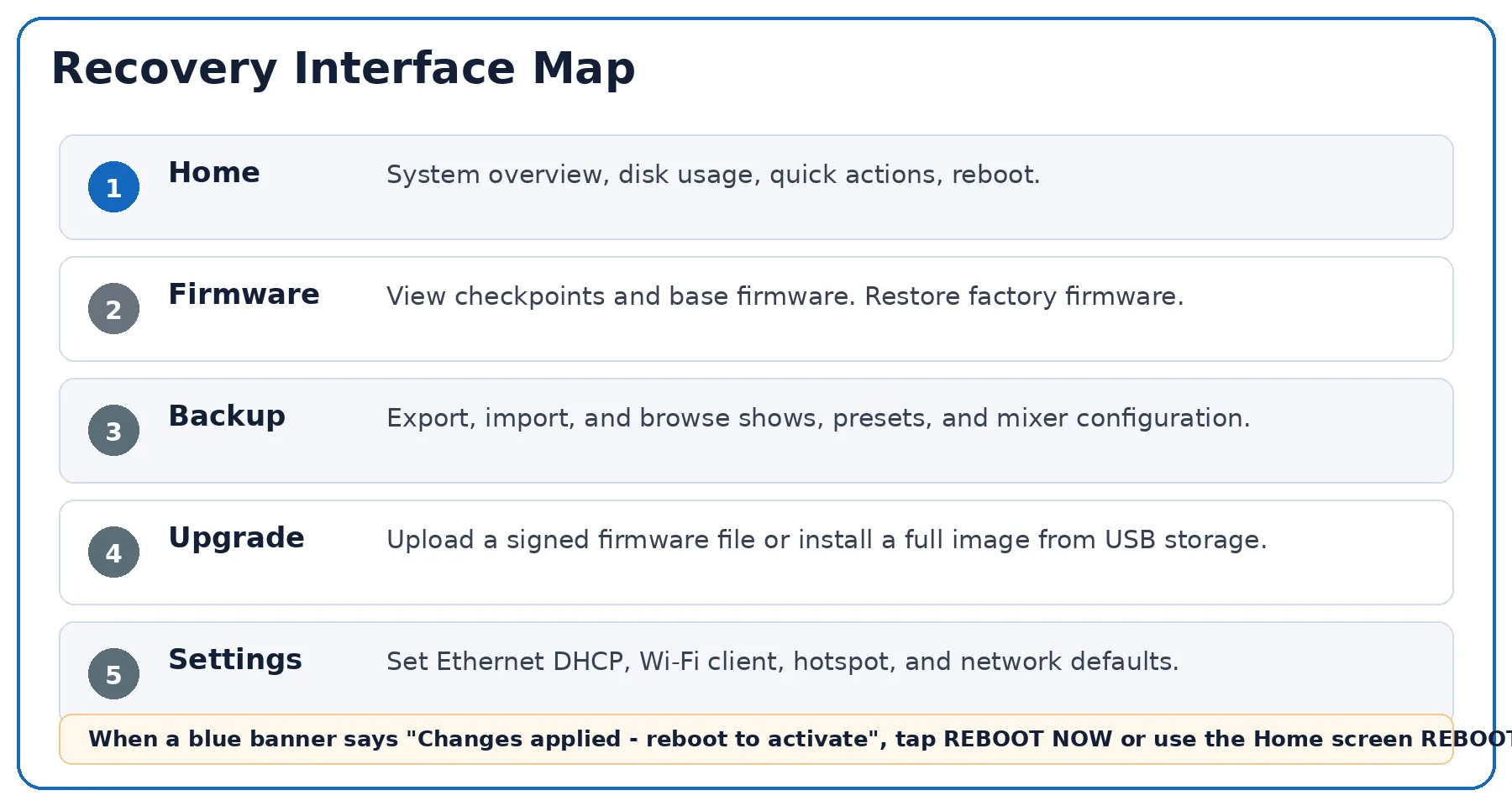
- 5. Main Tabs and What They Do
- 6. Firmware Tab — Restore Factory Firmware
- 7. Upgrade Tab — Install New Firmware
- 8. Upgrade Confirmations, Progress and Reboot
- 9. Backup Tab — Export, Import and Browse
- 10. Settings Tab — Network Configuration
- 11. Quick Troubleshooting
- 12. Safe Recovery Checklist
Before you start
The dMix 128 family uses two Ethernet network ports for two very different jobs: carrying control (the settings, gain, routing and metering exchanged with the mixer GUI and remote software) and carrying audio (live multichannel streams to and from computers and other devices). This guide walks through each connection method in the order you are most likely to need it — starting from a single cable on a bench, through a managed network, the audio driver, and finally Dante / AES67 streaming. The control port only carries control settings, while the dNet ports can carry control and audio at the same time.
Control
Reaching the mixer to configure it — IP settings, naming, routing, firmware.
Audio
Moving up to 128 × 128 channels between a computer and the dMix 128 via the CoreAudio / ASIO driver (still over AES67).
AES67 streaming
Exchanging standards-based multicast audio with other dMix 128 units and AES67-based systems (320 channels).
Key facts for the dMix 128
| Item | Value / behaviour |
|---|---|
| AES67 ports | 2 dedicated AES67 network ports (dNet1 is only enabled in V1 firmware) |
| Network channels | Up to 320 network channels on the dMix 128. |
| IP mode | Manual or Auto (set per device in its configuration page). |
| Multicast base | Default 239.200.0.0 — the AAA octet (200) is configurable as 239.AAA.0.0. |
| Clocking | Auto — IEEE 1588 (PTP) chooses the master automatically; or Forced to nominate one. |
| Audio driver | CoreAudio (macOS) and ASIO (Windows), 128 × 128 channels at 48 kHz or 96 kHz. |
| Sample rates | 48 kHz or 96 kHz, set on the mixer. |
Whatever method you use, the golden rule is that the device you are connecting from and the dMix 128 must sit on the same IP subnet. Most connection problems come down to a mismatch here — keep this in mind as you read each section.
1. Direct cable connection for control (self-assigned IP)
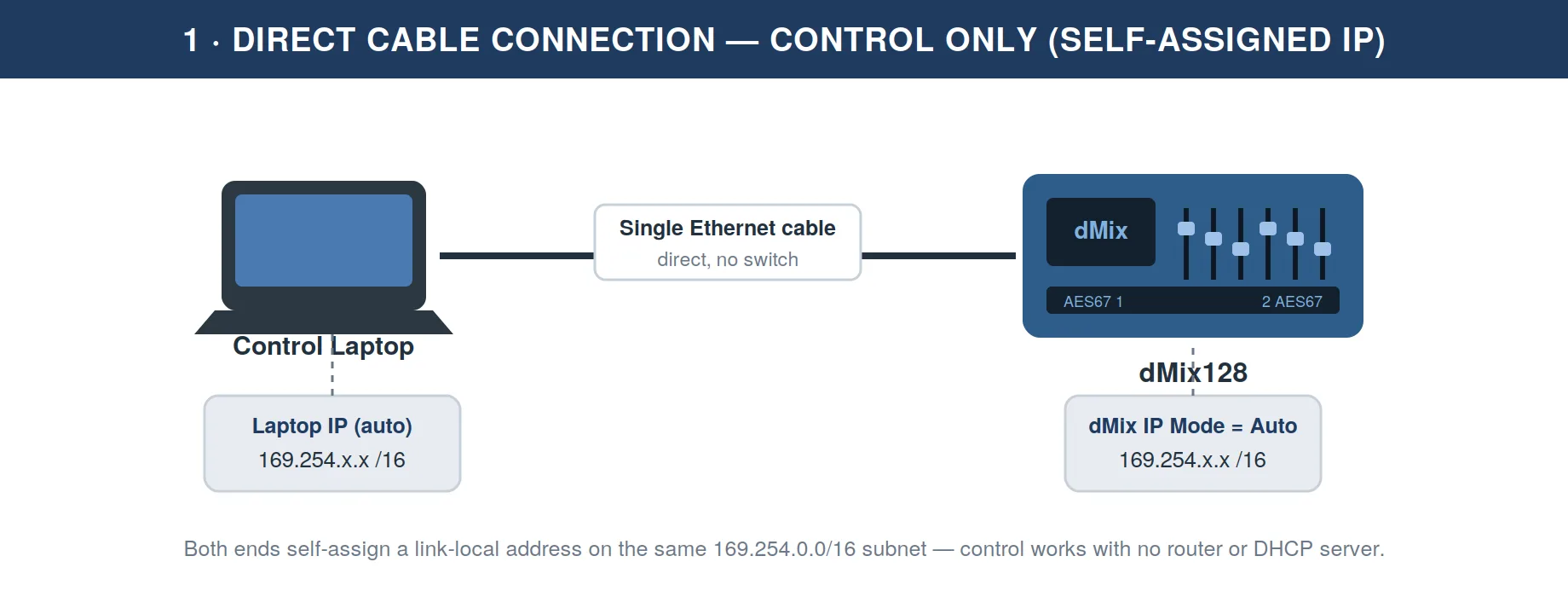
This is the fastest way to reach a dMix 128 on a bench or at front-of-house when there is no network in place: a single Ethernet cable straight from your computer to the mixer. No router, switch or DHCP server is involved. Both ends fall back to a self-assigned link-local address (the 169.254.x.x range), which puts them on the same subnet automatically.
Steps
- Connect one Ethernet cable from your computer's network port to a control / network port on the dMix 128.
- On the dMix 128, open its configuration page and set IP Mode = Auto.
- On your computer, set the Ethernet adapter to obtain an address automatically (DHCP). With no DHCP server present it will self-assign a
169.254.x.xaddress within a minute. - Wait until both ends show an address in the
169.254.x.xrange — they are now on the same link-local subnet. - Open the mixer GUI / control software. Open a browser (for a new unit using the default unit name, type
dmix.localinto the address bar). The dMix 128 should appear and connect. It may take a few seconds for the name server to propagate (DNS) and for the browser to detect it for the first time.
- Confirm both addresses begin with
169.254. If one end has a192.168or10.xaddress, it is on a different subnet — disable other adapters (Wi-Fi, secondary NICs) that may be steering traffic. - A modern computer and a modern device both auto-negotiate cabling, so a standard (straight-through) Ethernet cable is fine; a crossover cable is not required.
- Link-local is for control only. For reliable audio, move to a managed network (Section 2) and assign fixed addresses.
2. Connecting via a router for IP
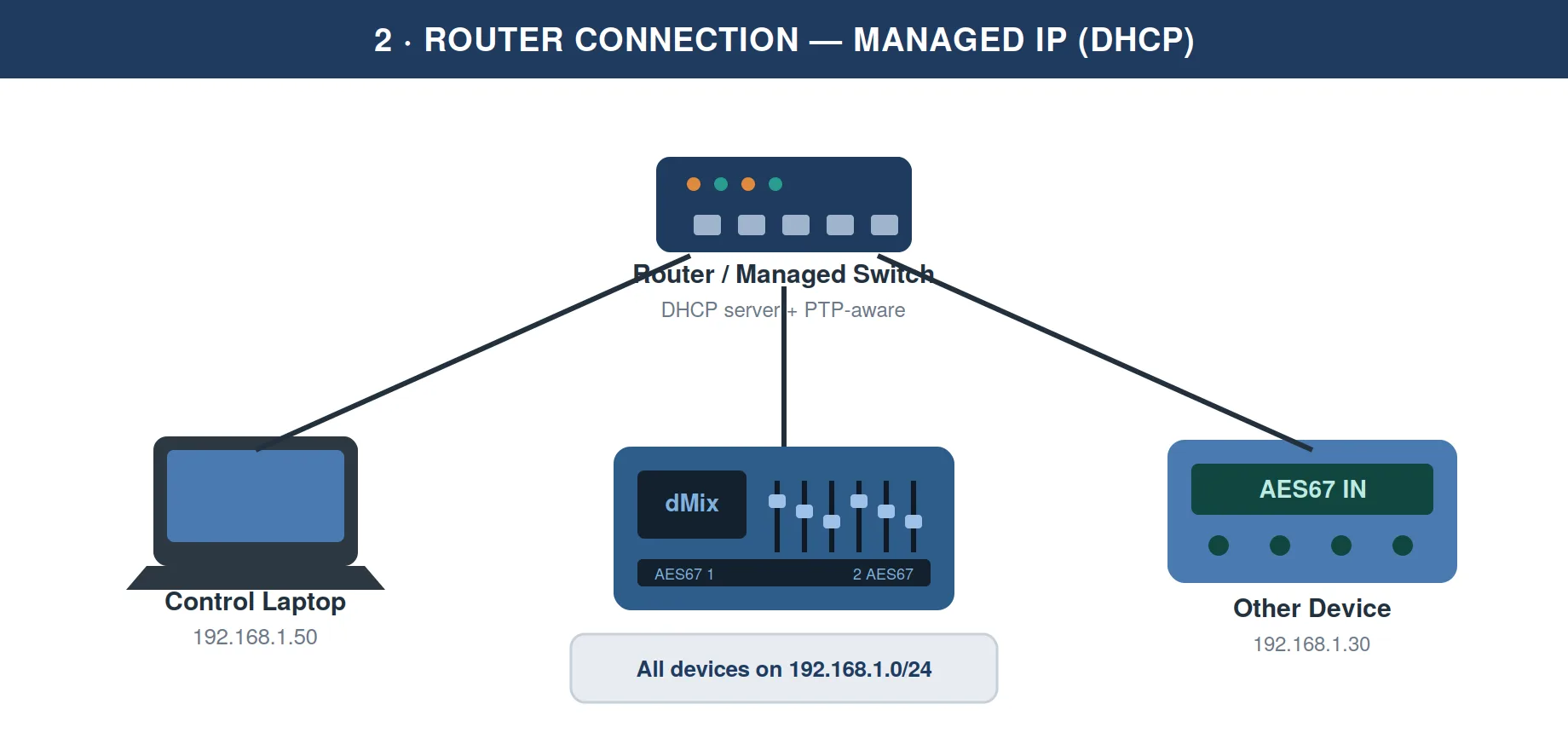
For anything beyond a quick bench check — multiple devices, a control laptop, audio computers and AES67 endpoints all together — connect everything through a router or managed switch. The router hands out IP addresses (DHCP) and keeps every device on one subnet, and a managed switch lets you keep the audio traffic healthy.
Option A — Automatic addressing (DHCP)
- Cable the dMix 128, your control computer and any other devices to the router / switch.
- Set the dMix 128 to IP Mode = Auto so it requests an address from the router.
- Set your computer's adapter to obtain an address automatically as well.
- Each device receives an address on the same subnet (for example
192.168.1.0/24). Open the control software and connect.
Option B — Fixed addressing (Manual)
Fixed addresses are recommended for installed or touring systems because a device always lives at a known location. Set every device manually within one subnet:
- On the dMix 128 set IP Mode = Manual and enter an IP Address, Subnet Mask and Gateway.
- Use the same subnet for every device, for example: dMix 128
192.168.1.20, computer192.168.1.50, mask255.255.255.0. - Give each device a unique address; keep the subnet mask and gateway identical across the system.
- Record the addresses — fixed addressing only helps if you can remember where everything lives.
- Use a managed gigabit switch for any system carrying live audio.
- Disable Energy-Efficient Ethernet (EEE / 802.3az) — it interferes with the PTP clock and causes audio glitches.
- Enable IGMP snooping with a querier so multicast audio is delivered only where it is needed.
- Keep the audio network separate from general office / internet traffic where possible.
3. Connecting for audio (driver install)
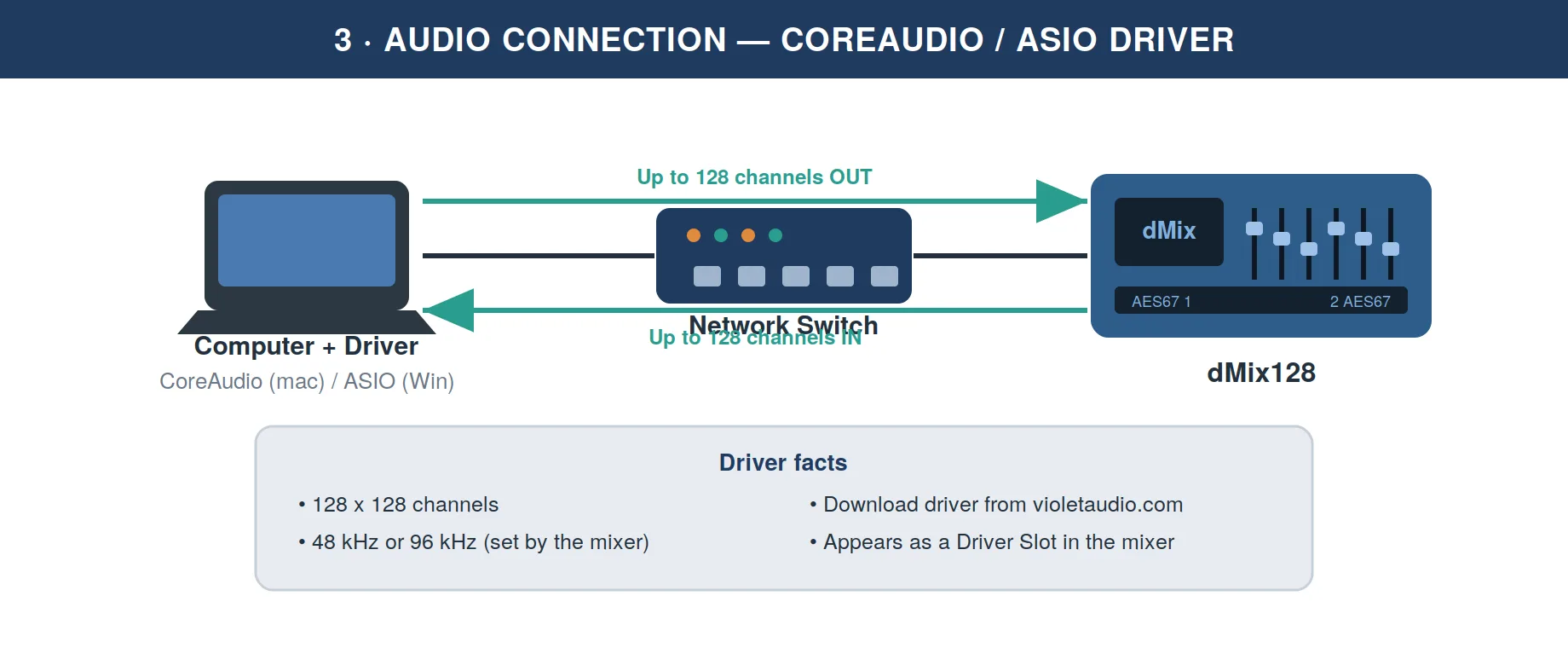
To record from or play back to the dMix 128 from a computer, install the dMix audio driver. It presents the mixer to your DAW or media software as a standard audio interface — CoreAudio on macOS, ASIO on Windows — carrying up to 128 channels in each direction.
Install and connect
- Download the driver for your operating system from the Violet Audio website (
violetaudio.com). - Run the installer (CoreAudio package on macOS, ASIO package on Windows) and restart if prompted.
- Make sure the computer is on the same subnet as the dMix 128 — use the direct cable (Section 1) or the router (Section 2) first.
- Open the driver's control panel and set the channel count you need — anywhere from 8 × 8 up to 128 × 128.
- In the mixer setup, the computer appears in a Driver Slot. Add it there; the mixer sets the sample rate (48 kHz or 96 kHz).
- In your DAW or media application, select the dMix device as the audio interface and route channels to and from it.
- Channel count is set by you on the driver; the mixer just reports it as a status.
- Sample rate is set by the mixer — match your DAW session to 48 kHz or 96 kHz.
4. How addressing works on the dMix
Every dMix on the network has one control IP address. How it gets that address decides how you find it:
- IP Mode = Auto — if a router / DHCP server is present the dMix takes an address from it (e.g.
192.168.1.x); with no DHCP server it self-assigns a link-local address in the169.254.x.xrange. - IP Mode = Manual — the dMix uses the fixed IP Address, Subnet Mask and Gateway you entered.
Read the address straight off the unit. Connect a compatible DisplayPort screen to the unit and navigate to the Settings page — you will then see the IP address.
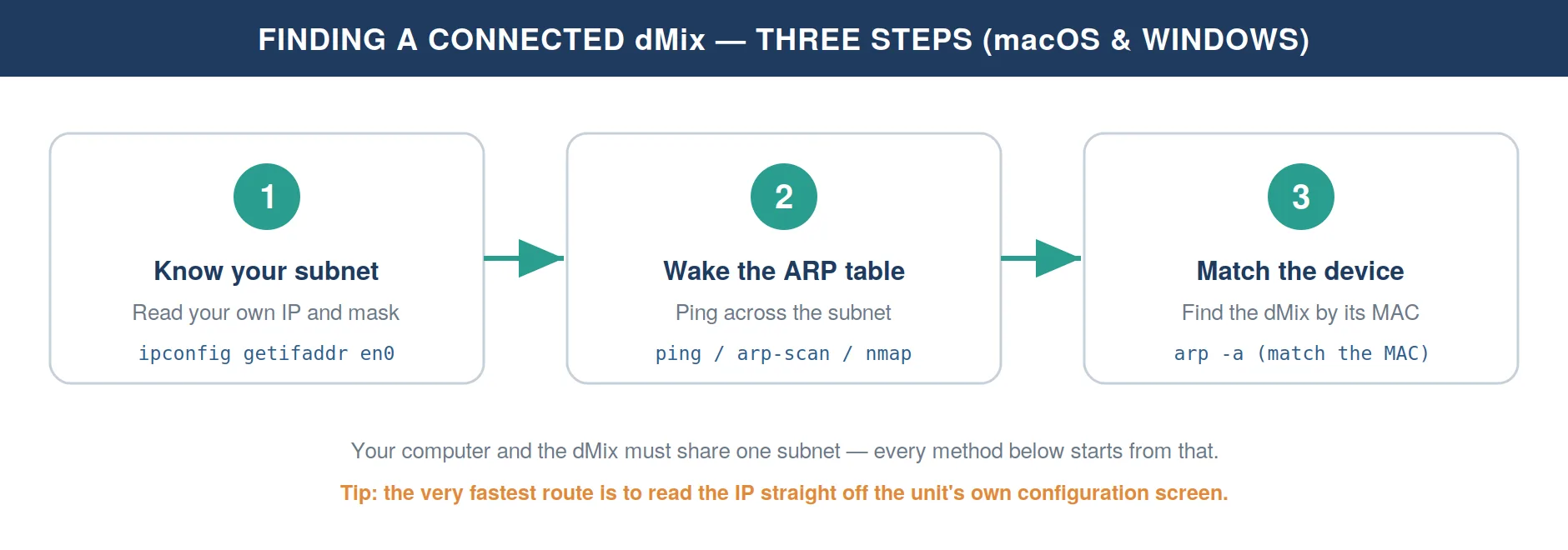
Your computer and the dMix must be on the same subnet. If your Mac is on 169.254.x.x and the dMix is on 192.168.1.x, no scan will find it. Confirm your own address first, then scan within that range.
5. Finding the dMix on macOS (Terminal)
Step 1 — Identify your interface and IP
First find which interface faces the dMix and what address it holds. Ethernet adapters are usually named en1, en5, en7, etc.; Wi-Fi is typically en0.
# List every hardware port and its device name (en0, en7 ...)
networksetup -listallhardwareports
# Your IPv4 address on a given interface
ipconfig getifaddr en7
# Full detail incl. subnet mask
ifconfig en7 | grep "inet "
Step 2 — Read or wake the ARP table
macOS keeps a table mapping IP addresses to MAC (hardware) addresses for devices it has recently spoken to. List it with:
arp -a            # every cached neighbour
arp -i en7 -a     # only the interface facing the dMix
If the dMix is not listed yet, “wake” the whole subnet with a quick ping sweep, then read the table again. Adjust the 192.168.1 prefix to match your own address:
# Ping every host on a /24, in parallel, then show the table
for i in $(seq 1 254); do ping -c1 -W200 192.168.1.$i >/dev/null & done; wait
arp -an
Step 3 — Stronger scanners (recommended)
A dedicated ARP scanner is faster and more reliable than a ping sweep, because it finds devices even when they ignore ICMP. Install either tool once with Homebrew:
arp-scan
brew install arp-scan
# Scan the subnet on the chosen interface (lists IP, MAC, vendor)
sudo arp-scan --interface=en7 --localnet
# For a link-local (169.254) direct connection
sudo arp-scan --interface=en7 169.254.0.0/16
nmap
brew install nmap
# Ping-scan a subnet (run with sudo to also show MAC + vendor)
sudo nmap -sn 192.168.1.0/24
Other tricks
- Identify by vendor. Each MAC begins with a manufacturer prefix (OUI). In arp-scan / nmap output, the vendor column makes the dMix easy to spot among phones and laptops.
- Bonjour / mDNS. If the dMix advertises itself, you can browse for it without knowing the IP:
dns-sd -B _services._dns-sd._udp local.   # list advertised service types
ping dmix-foh.local # if the unit has an mDNS name6. Finding the dMix on Windows
Step 1 — Identify your adapter and IP
Open Command Prompt or PowerShell and read your own configuration. Note the adapter that faces the dMix, its IPv4 address, subnet mask and Physical Address (your MAC).
:: Command Prompt
ipconfig /all
# PowerShell equivalent
Get-NetIPConfiguration
Step 2 — Read or wake the ARP table
:: Show the current IP-to-MAC table
arp -a
If the dMix is missing, sweep the subnet to populate the table, then list it again.
:: Command Prompt: ping each host (use %%i inside a .bat file)
for /L %i in (1,1,254) do @ping -n 1 -w 200 192.168.1.%i >nul
arp -a
PowerShell gives a cleaner neighbour list:
# Sweep, then show reachable IPv4 neighbours with their MACs
1..254 | ForEach-Object { Test-Connection "192.168.1.$_" -Count 1 -Quiet }
Get-NetNeighbor -AddressFamily IPv4 | Where-Object State -ne Unreachable
Step 3 — Scanners and GUI tools
- nmap for Windows works exactly as on macOS:
nmap -sn 192.168.1.0/24. - Free graphical scanners such as Advanced IP Scanner or Angry IP Scanner list every device with its IP, MAC and vendor — the easiest option if you prefer not to use the command line.
- Identify by vendor (OUI) just as on macOS — the MAC prefix tells you which entry is the dMix.
7. Setting network priority on macOS
This is where Mac users most often get caught out: plug a Mac into an audio network and suddenly the internet “stops working,” or the control software cannot see the dMix. The cause is almost always the network service order.
How service order actually works
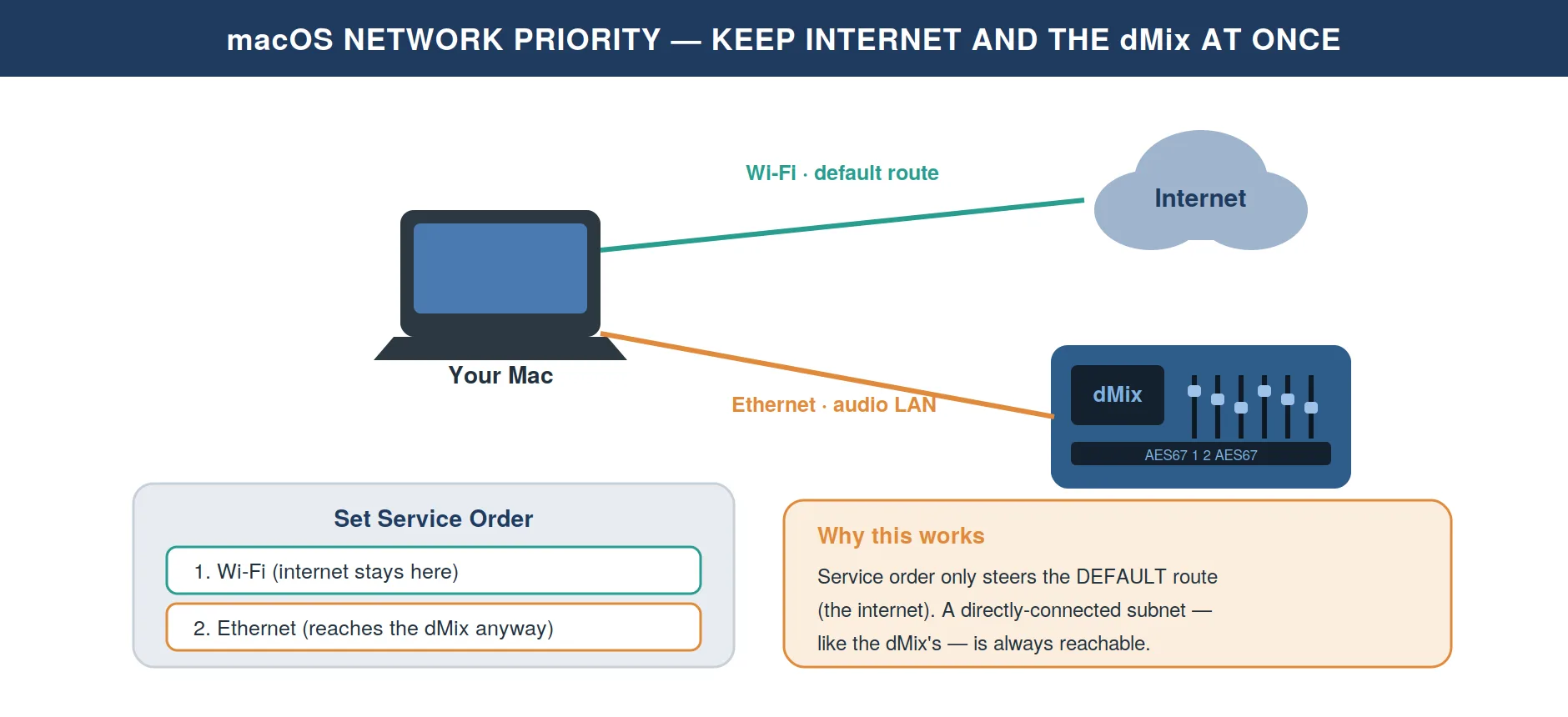
macOS tries network services from the top of the list down. Crucially, the order only decides the default route — where traffic goes when its destination is not on any directly-connected network (i.e. the internet). Traffic to a directly-connected subnet, such as the dMix's, always leaves through the matching interface regardless of order. That single fact is the key to keeping both working at once.
Set the order (System Settings)
- Open the Apple menu → System Settings → Network.
- Click the Action pop-up menu (the ⋯ / three-dots button on the right), then choose Set Service Order.
- Drag the services into the order you want, then click OK (on older macOS, also click Apply).
- Keep Wi-Fi (or your internet link) at the top, and the audio Ethernet below it. Internet keeps flowing over Wi-Fi, while the dMix's directly-connected subnet is still reachable over Ethernet.
- On the audio Ethernet service, set Configure IPv4 = Manually and leave the Router field blank. With no gateway, macOS will never try to push internet traffic down the audio NIC. (Link-local
169.254connections have no gateway anyway.) - For a pure audio session, right-click the internet service and choose Make Service Inactive to take it out of the running entirely (re-enable with Make Service Active).
Do it from Terminal
The same ordering is scriptable. The set command must list every service, in the order you want them:
# View the current order and the device each service maps to
networksetup -listnetworkserviceorder
# Set the order (names must match exactly; list ALL services)
networksetup -ordernetworkservices "Wi-Fi" "Ethernet" "USB 10/100/1000 LAN"
# Inspect a single service (IP, router, etc.)
networksetup -getinfo "Ethernet"VPN connections always take priority and cannot be reordered. If a VPN is active, it sits above everything in the list.
8. Setting network priority on Windows
Windows decides the preferred connection with an interface metric. A lower metric wins — the adapter with the smallest metric is used for the default route. The same blank-gateway trick applies as on macOS.
Set the metric (graphical)
- Open
ncpa.cpl(Control Panel → Network Connections). Right-click the adapter → Properties. - Select Internet Protocol Version 4 (TCP/IPv4) → Properties → Advanced…
- Untick Automatic metric and type an Interface metric. Lower = preferred (e.g. internet adapter
10, audio adapter50).
Set the metric (PowerShell)
# View interfaces sorted by metric (lowest = preferred)
Get-NetIPInterface -AddressFamily IPv4 | Sort-Object InterfaceMetric
# Prefer the internet adapter, de-prioritise the audio adapter
Set-NetIPInterface -InterfaceAlias "Wi-Fi"    -InterfaceMetric 10
Set-NetIPInterface -InterfaceAlias "Ethernet" -InterfaceMetric 50On the audio adapter's IPv4 properties, set a static IP and subnet mask but leave the Default gateway empty. Windows then installs no default route through that NIC, so it cannot hijack your internet — yet the dMix's subnet stays directly reachable.
9. Command cheat-sheet & troubleshooting
Cheat-sheet
| Task | Command | OS |
|---|---|---|
| Your own IP | ipconfig getifaddr en7 | macOS |
| Your own IP | ipconfig /all | Windows |
| List neighbours | arp -a | Both |
| Best scan | sudo arp-scan --localnet | macOS |
| Best scan | nmap -sn 192.168.1.0/24 | Both |
| View priority | networksetup -listnetworkserviceorder | macOS |
| View priority | Get-NetIPInterface | Windows |
| Set priority | networksetup -ordernetworkservices ... | macOS |
| Set priority | Set-NetIPInterface -InterfaceMetric n | Windows |
Troubleshooting
| Symptom | Likely cause & fix |
|---|---|
| Scan finds nothing | You and the dMix are on different subnets. Check your own address first; scan within that range. A device on 169.254.x.x cannot see one on 192.168.x.x. |
| arp shows (incomplete) | The device has not answered yet. Ping it (or the subnet) once, then read the table again. |
| Internet drops when audio NIC is plugged in | The audio adapter became the default route. Raise its metric (Windows) or lower its service-order position (macOS), or leave its gateway blank. |
| Control software still cannot connect | Two adapters may share one subnet, or Energy-Efficient Ethernet / a firewall is interfering. Use distinct subnets and disable EEE on audio ports. |
| Found by name but not IP | The unit is advertising via Bonjour/mDNS. Use its .local name, or scan with arp-scan to resolve the actual address. |
10. Creating Dante / AES67 streams and connecting the dMix 128
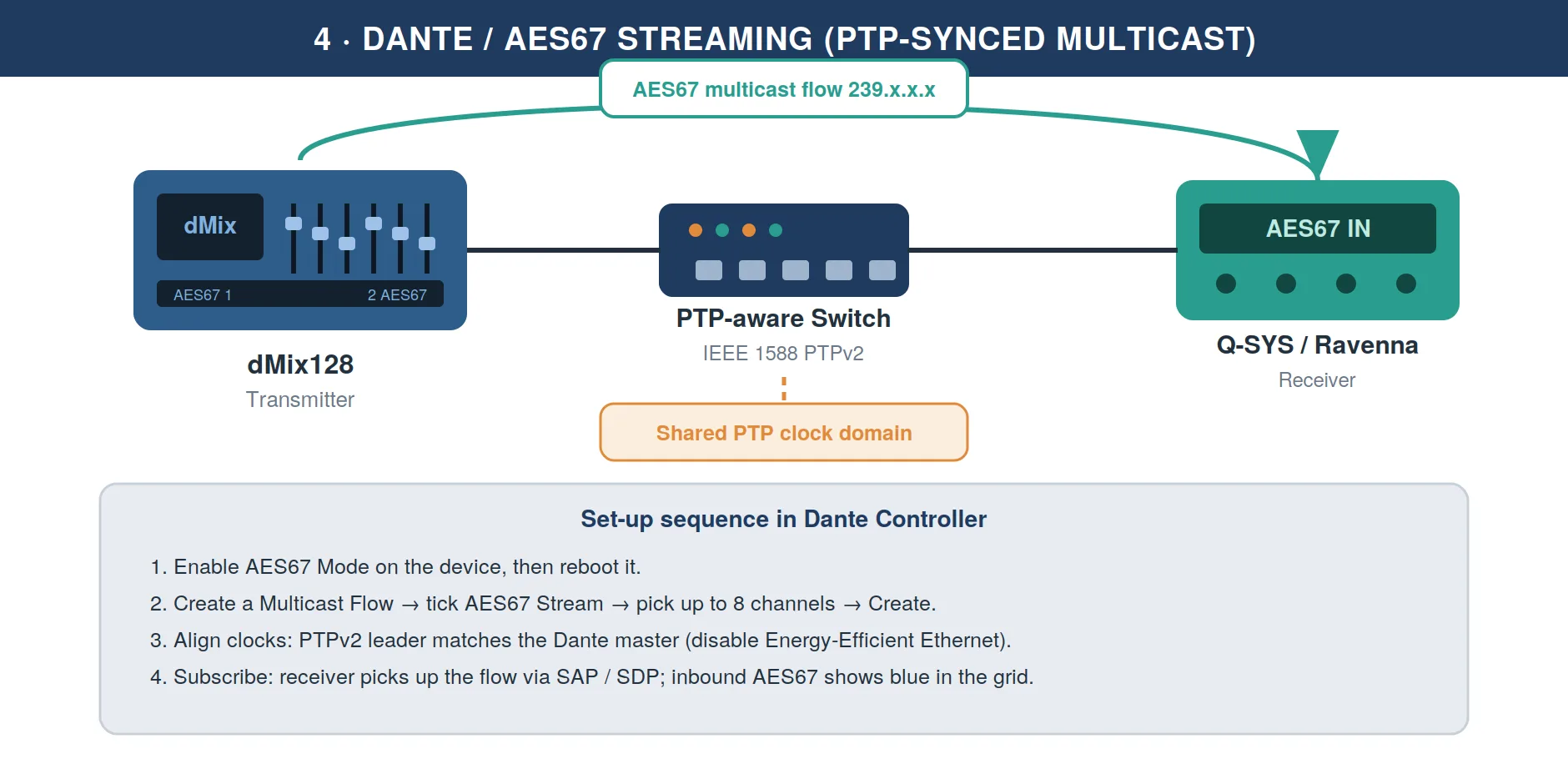
AES67 is the open standard that lets audio cross between different manufacturers' systems. The dMix 128 transmits and receives AES67 multicast streams natively from its two AES67 ports, using its configurable multicast base (default 239.200.0.0) and an IEEE 1588 (PTP) clock. To exchange audio with a Dante-based system, the Dante devices must first be switched into AES67 mode in Dante Controller. The steps below cover both sides and the all-important clock alignment between them.
Step 1 — Prepare the dMix 128 side
- Confirm the dMix 128 AES67 ports are cabled to your audio switch and that the device has a valid IP address (Section 2).
- Check the multicast base address. The default
239.200.0.0sits inside the239.x/16range that AES67 receivers expect, so leave it unless you have a specific reason to change it. - Set the clock to Auto so PTP negotiates the master automatically, or Forced if you need to nominate a specific master device.
Step 2 — Enable AES67 on the Dante device (Dante Controller)
- In Dante Controller, double-click the Dante device to open Device View.
- Open the AES67 Config tab (only shown on devices that support it).
- Set AES67 Mode = Enabled and confirm the warning.
- Reboot / power-cycle the device — AES67 mode only takes effect after a restart.
- Set the RTP Multicast Address Prefix to match the dMix 128 range (
239.x). If the prefixes differ, a subscription can look successful but pass no audio.
Step 3 — Create a multicast flow
- On the transmitting device, click Create Multicast Flow (the plus icon in Device View).
- Tick the AES67 Flow / AES67 Stream checkbox.
- Select up to eight channels for the flow, then click Create. Add more flows for more channels.
Step 4 — Align the clocks (PTP)
- Make sure your switches support PTP and that Energy-Efficient Ethernet (EEE) is disabled on every audio port.
- In Dante Controller, open Clock Status and confirm the PTPv2 (AES67) leader aligns with your primary clock master.
- On the dMix 128, leave clocking on Auto unless you are deliberately forcing a master across the whole system.
Step 5 — Connect and route
Dante / third-party → dMix 128
- Transmitted AES67 multicast flows appear in the routing grid (often highlighted in blue) and are routed exactly like native channels.
- On the dMix 128, patch the incoming network channels using its NET input type, for example
$mixer-foh.i.2.src = $stage-center.n.1.
dMix 128 → Dante / third-party
- On the receiving device (Q-SYS, Ravenna, Symetrix, etc.), subscribe to the stream via SAP, or by importing the exported SDP file.
- Remember the
239.x/16rule: the receiver's multicast prefix must match the transmitting flow or no audio will pass.
Between two Dante devices, Dante's own transport is always used — even with AES67 enabled on both. AES67 only comes into play when one end is a non-Dante device, such as the dMix 128 talking to a Dante system, or a Q-SYS / Ravenna endpoint. Presets do not store AES67 flows, so recreate flows after loading a preset.
11. Quick reference & troubleshooting
Which connection do I need?
| Goal | Use | Section |
|---|---|---|
| Quickly configure a mixer on a bench | Direct cable, IP Mode = Auto | 1 |
| A permanent multi-device system | Router / managed switch, fixed IPs | 2 |
| Record / play back from a computer | CoreAudio or ASIO driver | 3 |
| Share audio with Dante / Q-SYS / Ravenna | AES67 multicast streams | 10 |
Common issues
| Symptom | Likely cause & fix |
|---|---|
| Control software cannot find the dMix 128 | Different subnets. Confirm both ends share a range (169.254.x.x direct, or one router subnet). Disable extra network adapters. |
| Audio dropouts / clicks | Energy-Efficient Ethernet enabled, or an unmanaged switch. Disable EEE; use a managed gigabit switch with IGMP snooping. |
| AES67 subscription shows connected but no audio | Multicast prefixes do not match. Set both ends inside 239.x/16. |
| Clock errors on the network | PTP not aligned. Check Clock Status; confirm one PTPv2 master and that switches pass PTP. |
| AES67 flow disappeared after recall | Presets do not store AES67 flows. Recreate the multicast flow after loading. |
You can always connect a screen to the dMix 128 to read the IP address it is set to. A full recovery mode is also possible via a connected phone — see Part 2.
Reference sources
- dMix System – GUI and Device Integration Specification (Violet Audio) — violetaudio.com
- Dante Controller User Guide – AES67 Config (Audinate) — dev.audinate.com
- Setting up an AES67 stream on a Dante device (Q-SYS) — support.qsys.com
Recovery Guide
Using the mobile-device recovery interface at 10.10.10.10 — restore firmware, back up or restore data, upgrade firmware and review network settings.
This guide explains how to connect a mobile device to the dMix 128 in recovery mode, open the browser interface, restore firmware, back up or restore data, upgrade firmware, and review network settings.
1. What Recovery Mode Is For
Recovery mode is a built-in service mode hosted directly by the dMix 128. When a phone or tablet is connected by USB-C, the mixer serves a local browser interface at 10.10.10.10. No internet connection is required.
Recovery mode can be used to:
- Check the active boot target, checkpoint count, system count, and disk usage.
- Restore the protected factory firmware base.
- Export, import, or browse shows and presets.
- Install signed firmware updates or a full firmware image from USB storage.
- Reset Ethernet, Wi-Fi client, and hotspot settings to defaults.
Recovery mode is intended for service, recovery, maintenance, and firmware work. Audio operation and normal mixer control should be handled from the normal dMix 128 interface.
2. Before You Start
| Item | What to check |
|---|---|
| USB-C cable | Use a reliable USB-C cable connected directly between the mobile device and the dMix 128 recovery USB-C connection. |
| Mobile device | Use a phone or tablet with a web browser. Put it into Airplane Mode before opening the recovery page. |
| Power | Make sure the dMix 128 is powered and stable. Do not interrupt power during firmware installation. |
| Firmware file | For upgrades, use the correct signed firmware file or full image supplied for the dMix 128. |
3. Enter Recovery Mode
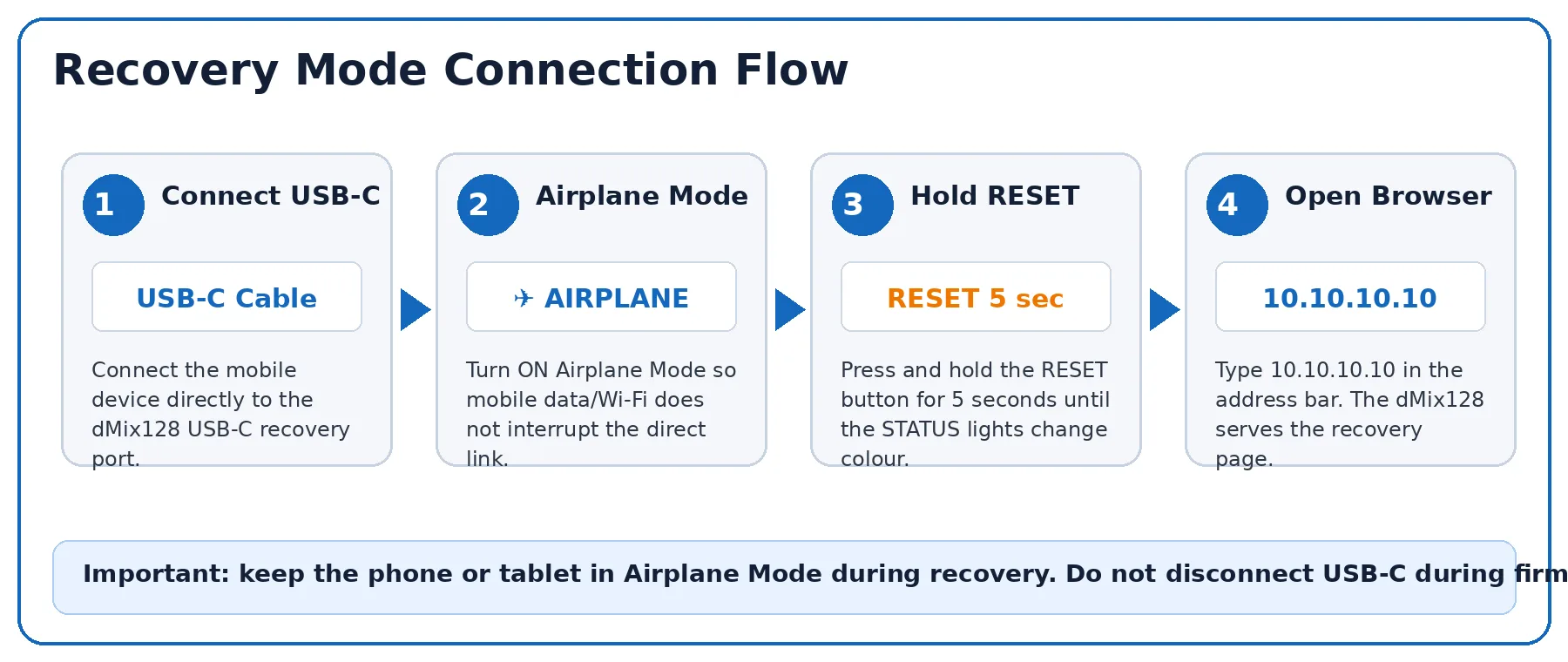
- Connect the phone or tablet to the dMix 128 using USB-C.
- Turn on Airplane Mode on the mobile device (normally only required for Android phones).
- Hold the dMix 128 RESET button for 20–25 seconds.
- Turn ON the dMix 128.
- Release the button when the STATUS lights change colour.
- Open a browser and type
10.10.10.10into the address bar.
Type 10.10.10.10 directly into the address bar. Do not search for it in Google.
4. Recovery Home Screen
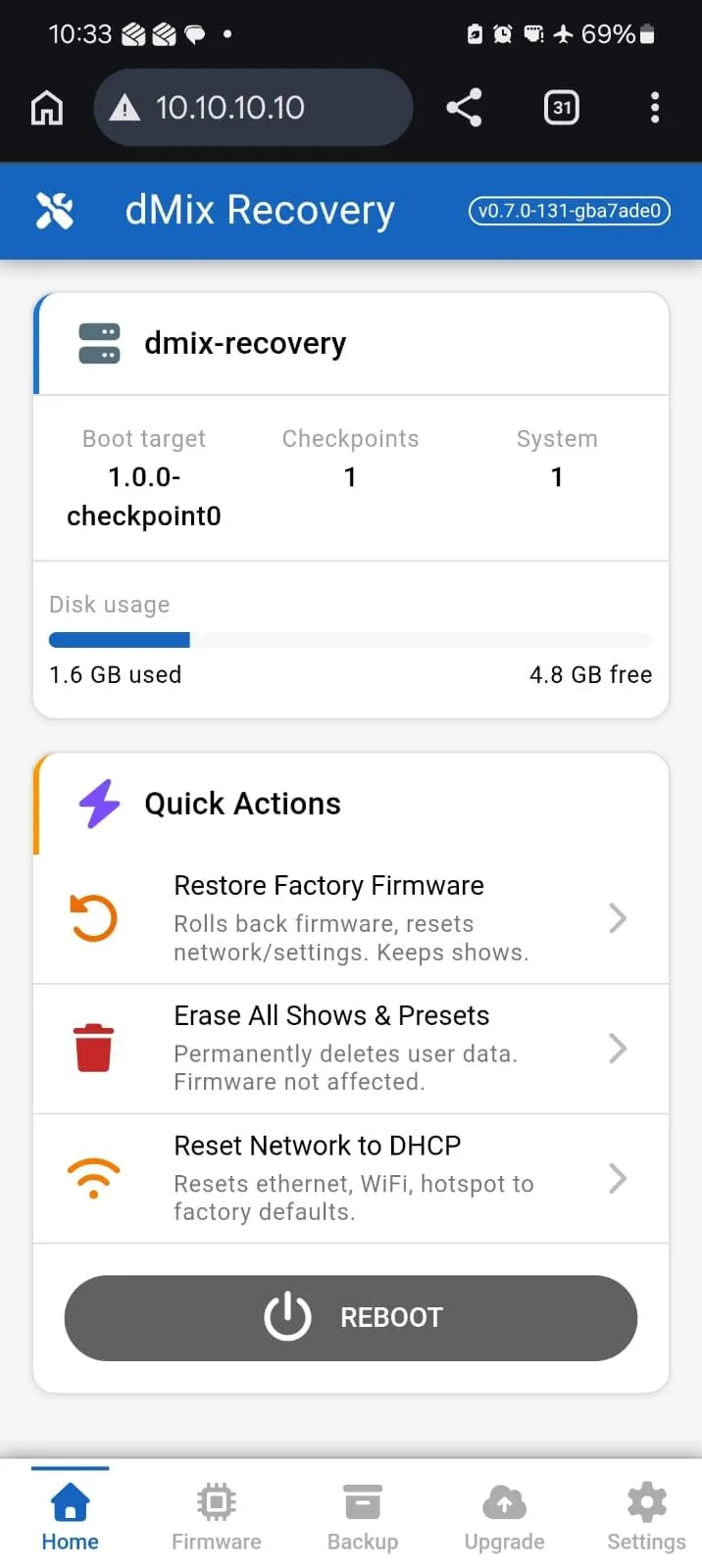
- Boot target shows which recovery checkpoint will boot.
- Checkpoints and System show available recovery / system entries.
- Disk usage shows used and free recovery storage.
- Quick Actions provide fast access to factory restore, user-data erase, network reset, and reboot.
5. Main Tabs and What They Do
Recommended navigation
- Start on Home to confirm the unit is connected and responsive.
- Use Firmware to restore factory firmware or view checkpoints.
- Use Backup to export / import shows and presets before service work.
- Use Upgrade to install a new firmware package.
- Use Settings to review or reset network behaviour.
6. Firmware Tab — Restore Factory Firmware
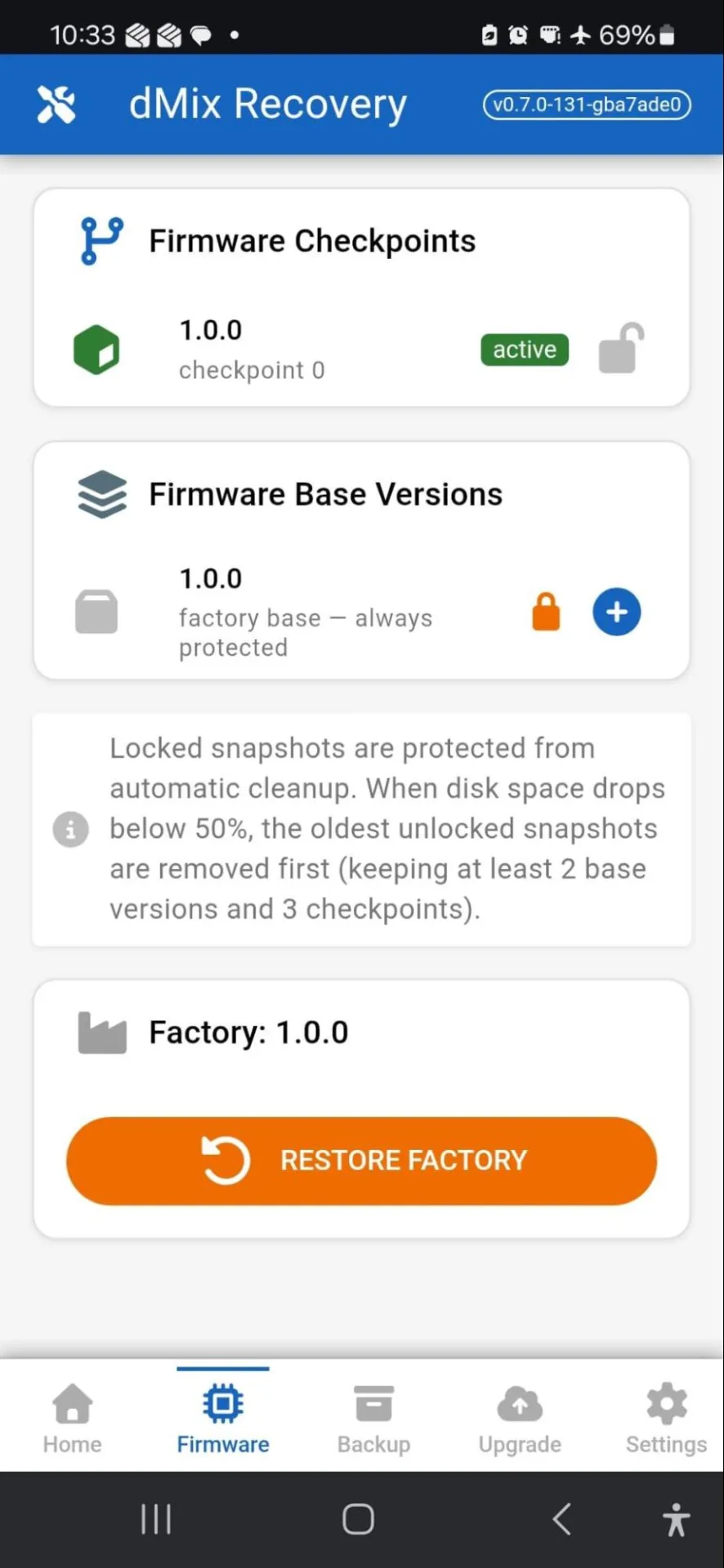
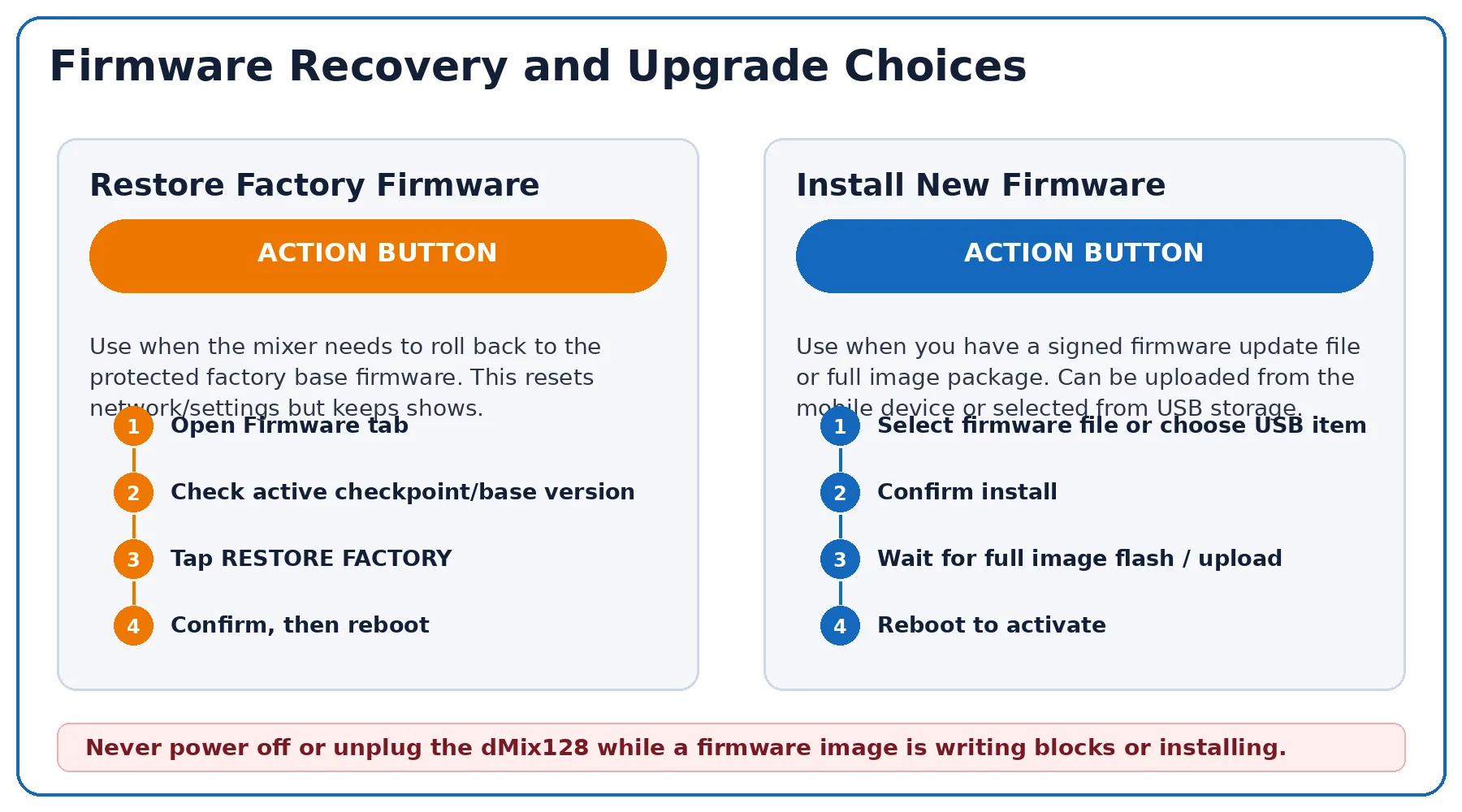
Use Restore Factory Firmware when the mixer needs to roll back to the protected factory base. This rolls back firmware and resets network / settings. Shows are kept unless you explicitly erase user data.
- Open the Firmware tab.
- Confirm the active checkpoint and factory base version.
- Tap RESTORE FACTORY.
- Confirm the prompt if shown.
- Reboot when asked so the restored firmware becomes active.
Restore Factory Firmware keeps shows. Erase All Shows & Presets permanently deletes user data.
7. Upgrade Tab — Install New Firmware
Upgrade from a file on the phone/tablet
- Open the Upgrade tab.
- Tap Select firmware file.
- Choose the signed firmware update file.
- Tap UPLOAD & INSTALL.
- Wait for the upload and installation to finish.
- Reboot when prompted.
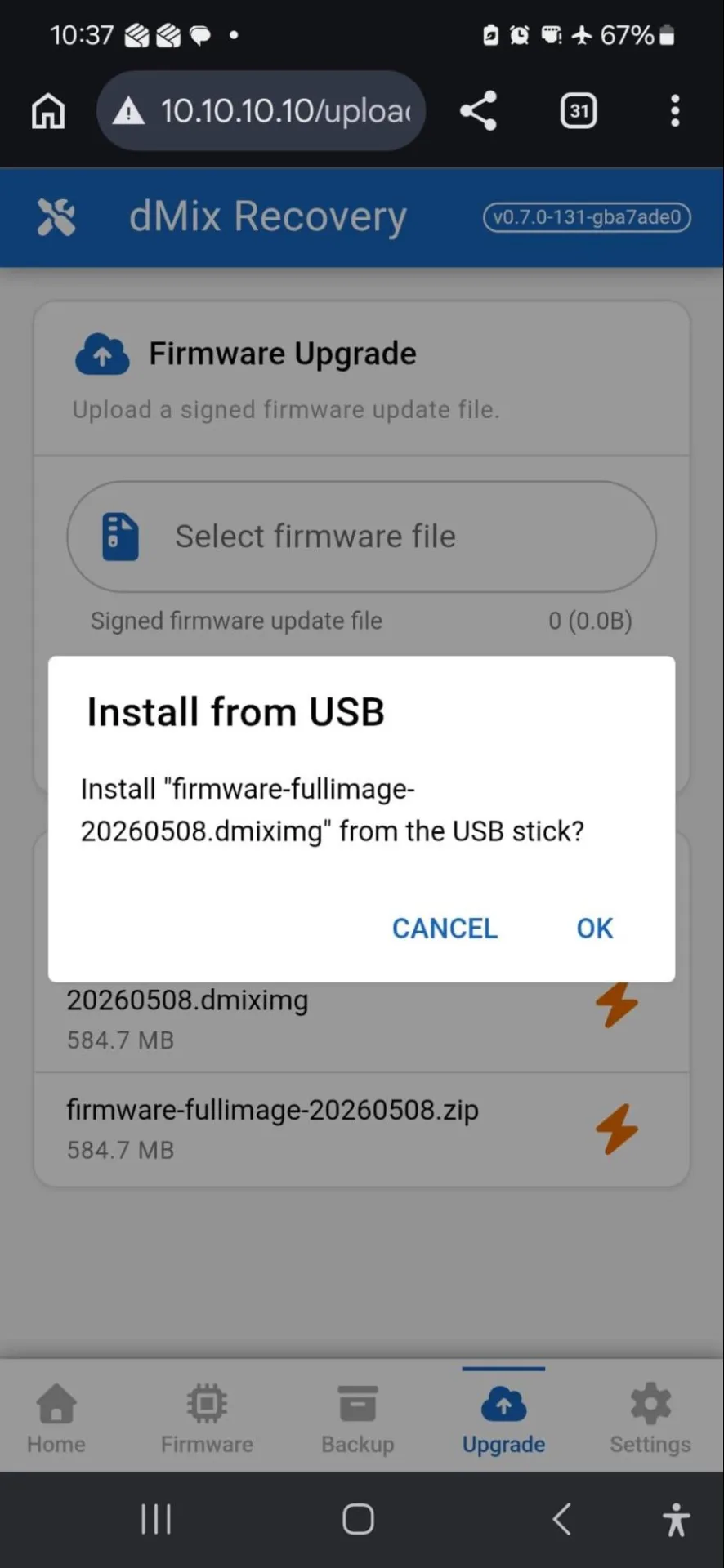
Upgrade from USB storage
- Insert the USB storage device that contains the firmware full image.
- Open the Upgrade tab.
- Under Upgrade from USB, tap the orange lightning icon next to the required file.
- Read the Install from USB prompt carefully.
- Tap OK to begin.
- Wait for the full image flash progress to complete.
- Reboot when prompted.
The screenshots show both .dmiximg and .zip files. Use the official firmware package supplied for the recovery process.
While the screen shows Full Image Flash or writing blocks, do not unplug USB-C, remove power, or restart the device.
8. Upgrade Confirmations, Progress and Reboot
- After an install, a blue banner may say Changes applied — reboot to activate.
- Tap REBOOT NOW or use the Home tab REBOOT button.
- A browser Connection Lost message is normal during reboot.
- When the dMix 128 has restarted, tap RELOAD or type
10.10.10.10again.
9. Backup Tab — Export, Import and Browse
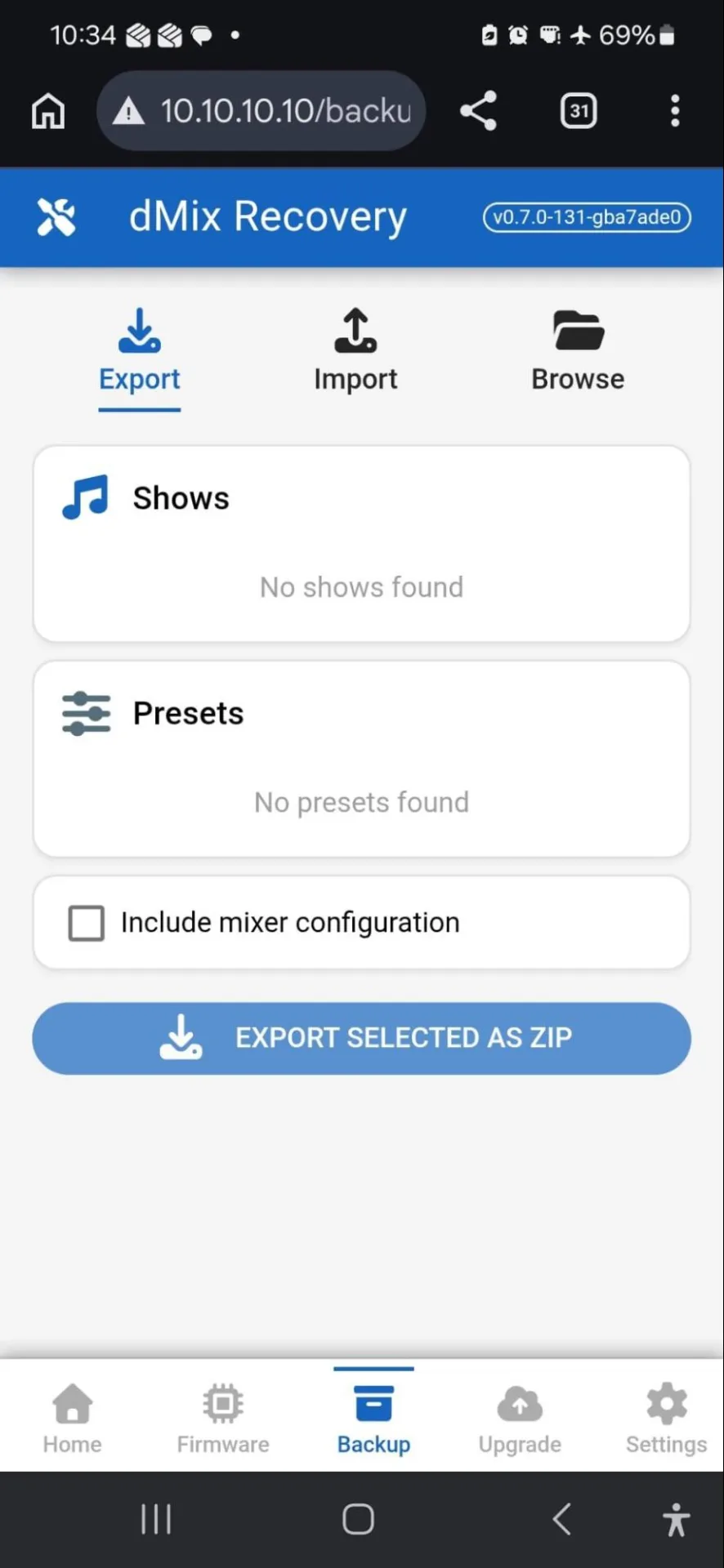
Export backup
- Open the Backup tab and select Export.
- Select the shows and / or presets to export. If none are listed, the screen will show No shows found or No presets found.
- Tick Include mixer configuration if the full mixer configuration should be included.
- Tap EXPORT SELECTED AS ZIP.
- Save the ZIP file to the mobile device.
Import or browse
- Import is used to bring shows or presets back into the mixer from a saved ZIP or compatible backup file.
- Browse is used to inspect stored backup items and available user data.
Before erasing data, restoring firmware, or performing major service work, export a backup where possible.
10. Settings Tab — Network Configuration
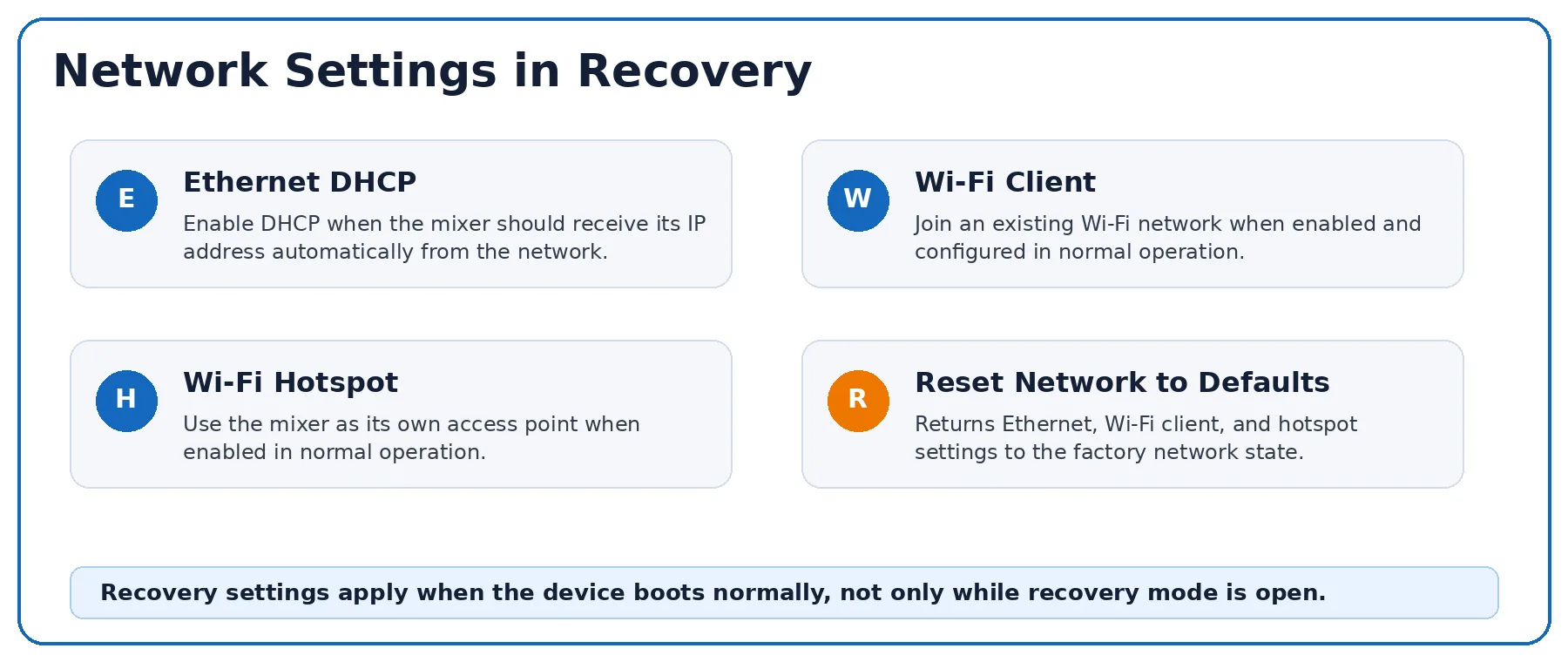
Note: the dMix 128 does not have a Wi-Fi Hotspot or Client, but other products in the range may include them.
- Ethernet DHCP: when enabled, the dMix 128 requests an IP address automatically from the network.
- Wi-Fi Client: enables connection to an existing Wi-Fi network when configured in normal operation. (not on the dMix 128)
- Wi-Fi Hotspot: enables the mixer hotspot mode when configured in normal operation. (not on the dMix 128)
- SAVE: stores the changed settings.
- RESET NETWORK TO DEFAULTS: returns Ethernet, Wi-Fi client, and hotspot settings to the factory network state.
The Settings screen states that these settings apply when the device boots normally, not only while recovery mode is active.
11. Quick Troubleshooting
| Symptom | What to do |
|---|---|
| Browser will not open 10.10.10.10 | Check USB-C connection, confirm Airplane Mode is on, and re-enter recovery mode by holding RESET for 5 seconds. |
| Connection Lost dialog appears | This is normal after reboot or if the device restarts. Tap RELOAD after the mixer has restarted. |
| Upgrade button is disabled | Select a signed firmware file first, or confirm a USB storage device with a valid firmware image is attached. |
| USB firmware file not shown | Check the USB storage device, file name, firmware type, and that the package is intended for dMix 128 recovery. |
| Changes applied banner stays visible | Tap REBOOT NOW to activate the applied settings or firmware. |
| Network still wrong after reboot | Open Settings, use RESET NETWORK TO DEFAULTS, Save if required, then reboot. |
12. Safe Recovery Checklist
- Mobile device connected directly by USB-C.
- Mobile device is in Airplane Mode.
- Browser opened to
10.10.10.10. - Backup exported before destructive actions where possible.
- Correct official firmware file selected.
- Power and USB-C connection not interrupted during flashing.
- Reboot completed after changes were applied.
- Browser page reloaded after reboot.
Violet Audio dMix 128 — Networking & Recovery Guide. © Violet Audio. All rights reserved.